How to Wipe a Laptop When an Employee Leaves, With Proof
Reset it for the next hire, or erase every drive with a certificate if it leaves the company. What an MDM wipe proves, and an offboarding checklist.
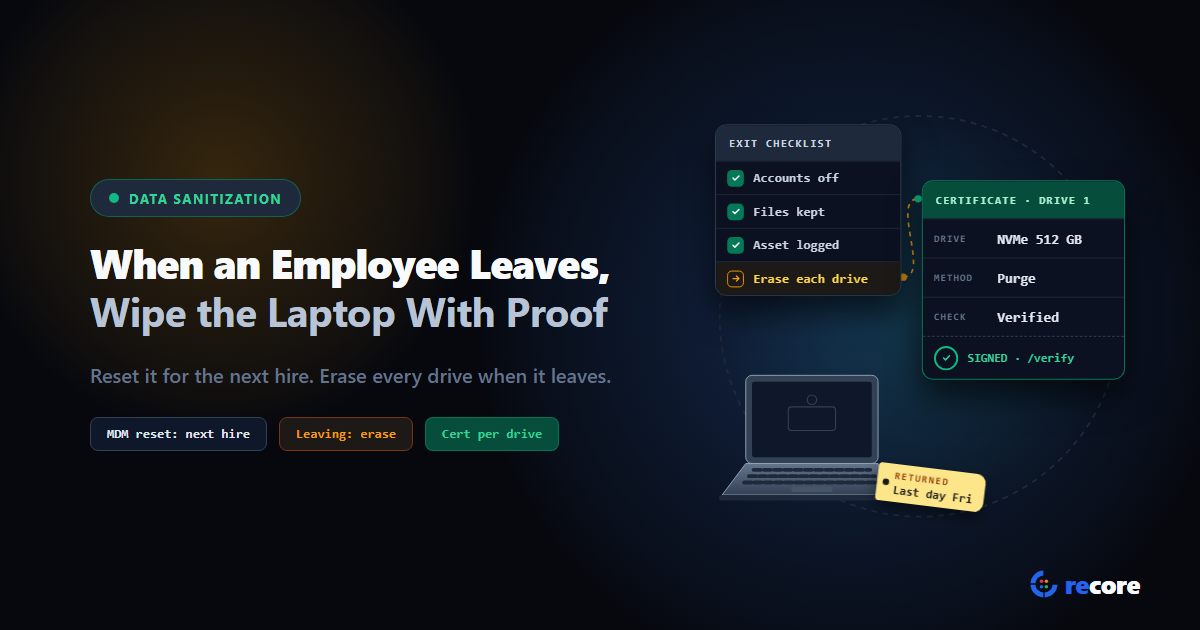
How do you wipe a laptop when an employee leaves? Start with one question: where does the laptop go next? If it stays in the company for the next employee, a reset through your device management (MDM) tool is the usual step. If it leaves the company, because it's sold, donated, recycled, returned at the end of a lease or kept by the leaver, erase each drive with a method that drive supports, check the result, and keep a certificate for each drive.
This guide covers Windows laptops managed with Intune or another MDM; Macs add Activation Lock, which needs its own step.
For what remote wipe means in general, see remote data wipe. For what an Intune wipe does to the drive, see our Intune and NIST 800-88 guide.
- An MDM wipe helps protect a laptop that's still out there. It's protection, not proof: its record says the device accepted the command, not what happened to each drive.
- Remove it from your MDM and Autopilot after the erase, not before.
1. First question: where is the laptop going?
NIST SP 800-88 Rev. 2, the US government's guide to media sanitization, names who controls the device next as one of the things that decide it. Section 4.3.4 says: "Organizational sanitization decisions are influenced by who has control and access to the media. This aspect must be considered when media leaves organizational control."
It names the moments control changes: "when an ISM is returned from a leasing agreement, donated, resold to be reused outside of the organization, or sent to a recycling facility." (ISM is NIST's word for a storage device.) It also warns that laws for some kinds of data "can treat the loss of organizational control of ISM that have not been sanitized as a data breach."
So offboarding splits into two cases.
| Case A: next employee | Case B: leaving the company | |
|---|---|---|
| Examples | Reassigned to a new hire or another team | Sold, donated, recycled, lease return, warranty swap, kept by the leaver |
| Who controls it next | You | Someone else |
| Usual step | MDM reset back to a ready-to-use state | Erase every drive with a method it supports |
| Record you need | Your asset record: who had it, who has it now | A certificate of sanitization per drive |
Control isn't the only test. Section 4.3.5 adds that "both organizational control and the data protection level should be considered." A laptop going from your finance lead to a summer intern stays in the company, but the data on it shouldn't follow. Treat that one like Case B.
The offboarding checklist
| # | Step | Next employee | Leaving the company |
|---|---|---|---|
| 1 | Record the asset: serial number, asset tag, who had it, where it's going | Yes | Yes |
| 2 | Disable the leaver's accounts and arrange the laptop's return | Yes | Yes |
| 3 | Save the files the business needs, including anything on hold | Yes | Yes |
| 4 | If the laptop isn't back yet: MDM wipe to help protect the data | If needed | If needed |
| 5 | Check how sensitive the data was, and who gets the laptop next | Yes | n/a |
| 6 | Reset through your MDM for the next user | Yes | No |
| 7 | Erase every drive with a method it supports, and check the result | If sensitive | Yes |
| 8 | Keep one certificate per drive with the asset record | If erased | Yes |
| 9 | Remove it from Intune, then deregister it from Autopilot | No | Yes, after step 8 |
| 10 | Close the asset record with the destination: buyer, recycler or the leaver | n/a | Yes |
Sections 2 to 4 explain the steps.
2. Case A: the laptop goes to the next employee
Here the goal is a clean, ready laptop, quickly. In Microsoft's case, the tool is Autopilot Reset. Microsoft says it "takes the device back to a business-ready state, so the next user can sign in and start working quickly and easily," and that it "Removes personal files, apps, and settings" while keeping the device's link to Microsoft Entra ID and Intune. It doesn't support hybrid joined devices: for those, "you need to perform a full device wipe."
Before you reset, save what the business needs: mailbox, project files, anything under a retention rule or legal hold. After the reset it's gone from this laptop. Don't pick a reset option that keeps user files, and update the asset record with the new user.
A reset like this is not sanitization, and it doesn't need to be when the laptop stays with you. NIST's sample certificate does have a box for "Internal Reuse", so if your policy treats some roles' laptops as sensitive, erase and record those too.
3. Case B: the laptop leaves the company
Erase every drive, check it, keep a certificate per drive, then clean up your MDM records. Here's why a reset isn't enough.
On Windows, the default Intune wipe is a Reset this PC that deletes user files one by one. Microsoft says that reset's erasure "does not meet government and industry data erasure standards", and the command's status only says the device accepted it. The Intune guide has the full detail.
NIST has two methods that leave the drive usable. Clear applies "logical techniques to sanitize data in all user-addressable storage locations." Purge applies "physical or logical techniques to render target data recovery infeasible using state-of-the-art laboratory techniques." For an SSD, a software Purge uses the drive's own sanitize commands, because overwriting through Windows can't reach every cell.
Then Section 4.6: "a certificate of sanitization (see Appendix C) should be completed for each ISM that has been sanitized, per the organization's policies." Each ISM means each drive, not each laptop. A laptop with two drives needs two certificates. The certificate records the drive's serial number, the method (Clear, Purge or Destroy), the technique, the tool and its version, how it was verified, and who verified it. Our certificate of sanitization template walks through every field.
If the leaver keeps or buys the laptop, it's still Case B. Erase it, then remove it from Intune and Autopilot (step 9). Microsoft says: "Whenever a device permanently leaves an organization, you should deregister it from Windows Autopilot." Then install Windows from Microsoft's media before you hand it over.
Erase first, then clean up. Microsoft's wipe page also puts that clean-up after the wipe: "After executing the action on a device from Intune, you might also want to remove its registration from Windows Autopilot, if applicable." Its Autopilot page sets the order of the records: "Before you deregister a device from Windows Autopilot, delete it from Intune."
4. Remote wipe for a laptop that isn't back yet
Many leavers work from home, so the laptop isn't in the office on their last day. You have three options.
- Send an MDM wipe while the laptop is out. On Windows, choose the option that keeps going if the device loses power: Microsoft says the default wipe "can be easily circumvented by simply power cycling the device." The laptop has to be on and online to receive it. Microsoft warns this option "can prevent some devices from starting up again," which matters less for a laptop you'll erase anyway.
- Get it back, then erase it at your office.
- Erase it where it is. The person boots it from a reCore USB stick your IT team writes and posts to them, connects it to the network and signs in. Set up a technician account just for this hand-off, and revoke its PIN in the dashboard once the wipe is done. IT then starts and watches the wipe from a browser. That's what remote wipe software for data erasure does, and it saves a trip when the laptop goes straight on to a buyer, a recycler or the leaver.
The first and last options need the laptop switched on. No tool can wipe a laptop that's off.
5. Where reCore fits
reCore does steps 7 and 8. It doesn't replace your MDM and doesn't connect to it.
- Someone boots the laptop from a USB stick with the reCore OS on it. PXE network boot, which we set up on request, needs a boot server on your own network, so at someone's home it's the USB stick. Once someone signs in, the laptop shows up in your dashboard. A laptop that's switched off can't receive a wipe; until it's on, your MDM is the tool.
- From the dashboard you pick one drive, or drives across several connected machines, and confirm; technicians and admins can do this, view-only users can't.
- The wipe runs on the laptop, not in the cloud, so it keeps going if the connection drops. reCore holds the record until the connection is back, then sends it. Leave the laptop on until the dashboard shows the result.
- reCore never wipes the drive it's running from. It keeps that drive off the wipe list and refuses a wipe aimed at it, and if it can't work out which drive that is, it refuses every wipe. Started from the stick, the laptop's own drives can all be wiped, unless the BIOS hides one (Intel RAID mode on some 8th to 10th generation laptops); then switch the BIOS storage mode to AHCI first. If reCore runs inside the laptop's Windows instead, it can't wipe the drive Windows is running from.
- Booted from reCore, it uses the drive's own erase commands where the drive has them, and checks each drive after the wipe. When reCore runs inside Windows instead, it can only overwrite or use ATA Secure Erase, so most of those wipes are recorded as Clear. Every drive gets its own certificate, digitally signed, which anyone you give it to can check at recore.replugit.com/verify without an account. Remote wipe is included in every plan.
Questions about your own offboarding process? Email [email protected].
Sources
- NIST, SP 800-88 Rev. 2, Guidelines for Media Sanitization, September 2025: Sections 4.3.4, 4.3.5, 4.6, Appendix C (sample certificate) and the glossary entries for Clear and Purge.
- Microsoft Learn, Windows Autopilot Reset, read 16 November 2026.
- Microsoft Learn, Windows Autopilot registration overview, "Deregister a device", read 16 November 2026.
- Microsoft Learn, Wipe devices with Microsoft Intune, read 16 November 2026.
- Microsoft Learn, RemoteWipe CSP, read 16 November 2026.
- Microsoft Learn, How push-button reset features work, read 16 November 2026.
Frequently asked questions
How do you wipe a laptop when an employee leaves?
First decide where the laptop goes next. If it stays in the company for the next employee, save the files the business needs and reset it through your device management tool. If it leaves the company (sold, donated, recycled, returned at the end of a lease, or kept by the employee), erase each drive with a method that drive supports, check the result, and keep a certificate for each drive.
Is an Intune or MDM wipe enough when an employee leaves?
It's enough to hand the laptop to the next employee, and it helps protect a laptop that hasn't come back yet. It isn't proof for a laptop leaving the company. Microsoft says the Windows reset behind the default wipe does not meet government and industry data erasure standards, and the command's status shows whether the device accepted it, not what happened to each drive.
Do I need a certificate of sanitization if the laptop goes to the next employee?
Usually not. A reset for the next employee is not a sanitization. NIST SP 800-88 Rev. 2 asks for a certificate for each storage device that has been sanitized, per the organization's policies, and its sample certificate has a box for internal reuse. So if the laptop held sensitive data and is moving to someone who shouldn't see it, erase it properly and keep the record.
The employee wants to keep their laptop. Do we still wipe it?
Yes. A laptop the leaver keeps has left your organization's control, the same as one that is sold or donated. NIST SP 800-88 Rev. 2 says this must be considered when media leaves organizational control, and notes that some laws treat losing control of media that wasn't sanitized as a data breach. Erase each drive, deregister it from Windows Autopilot, and hand it over with a fresh copy of Windows.
Should I remove the laptop from Intune before or after wiping it?
After. Erase each drive first, then remove the laptop from Intune, then deregister it from Windows Autopilot. Microsoft's Autopilot page says: "Before you deregister a device from Windows Autopilot, delete it from Intune."
reCore Research Lab
OfficialCompliance & Security Group
Technical research group specializing in NIST SP 800-88, IEEE 2883, SERI R2v3 standards, and forensic data recovery testing.
Wipe every drive. Prove every wipe.
reCore picks the purge method for each drive, verifies the result, and issues a per-drive certificate that a second person approves.
Related Guides & Research
Continue exploring compliance standards, firmware sanitization, and hardware diagnostics.
Does Degaussing Destroy a Hard Drive? What NIST SP 800-88 Rev. 2 Says
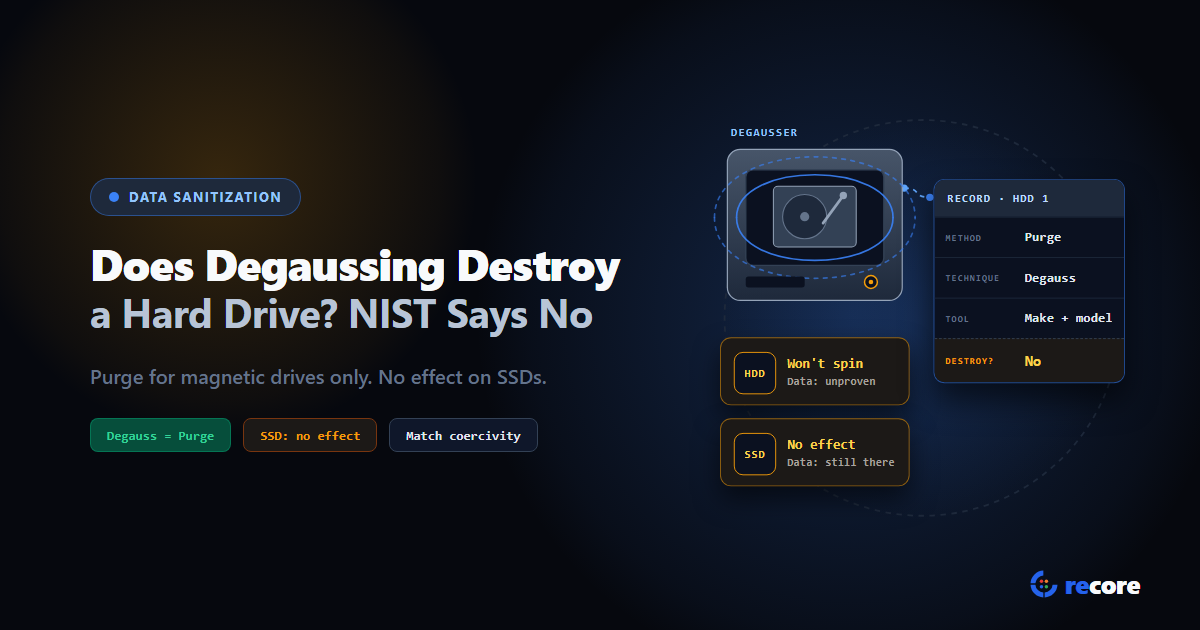
Under NIST SP 800-88 Rev. 2, degaussing is a Purge for magnetic drives only. Why it does nothing to SSDs, when a degausser is too weak, and what to record.
How to Choose Remote Wipe Software: 8 Questions to Ask
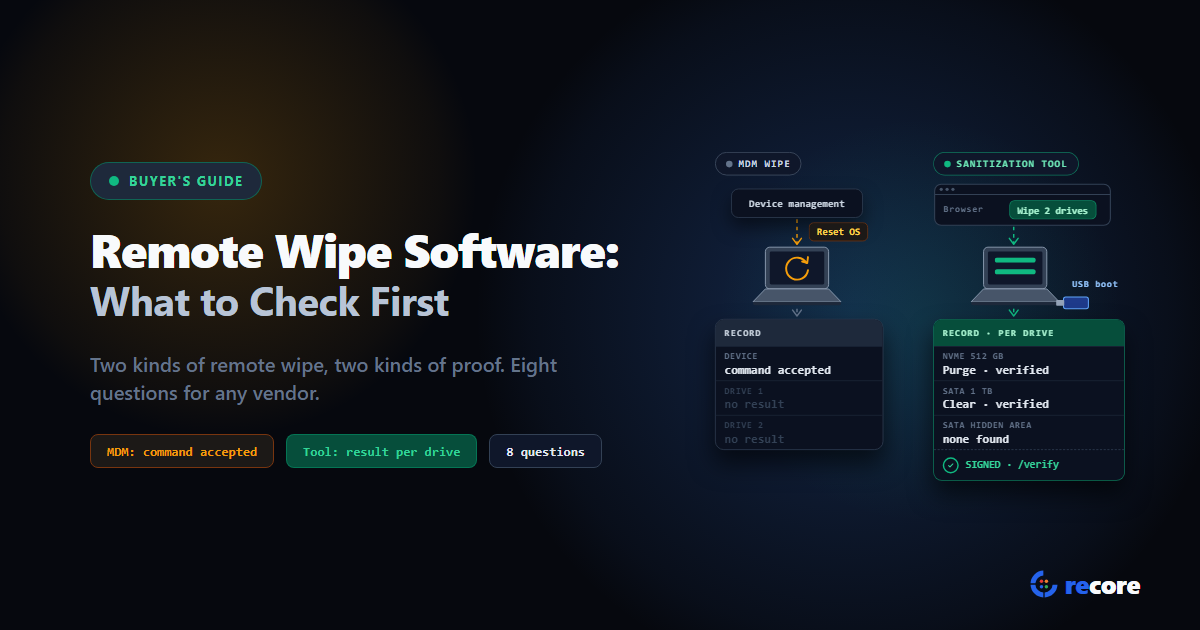
How to choose remote wipe software for an ITAD floor or IT team: the two kinds, what each proves, and eight questions to ask any vendor.
How to Secure Erase an NVMe SSD, Step by Step
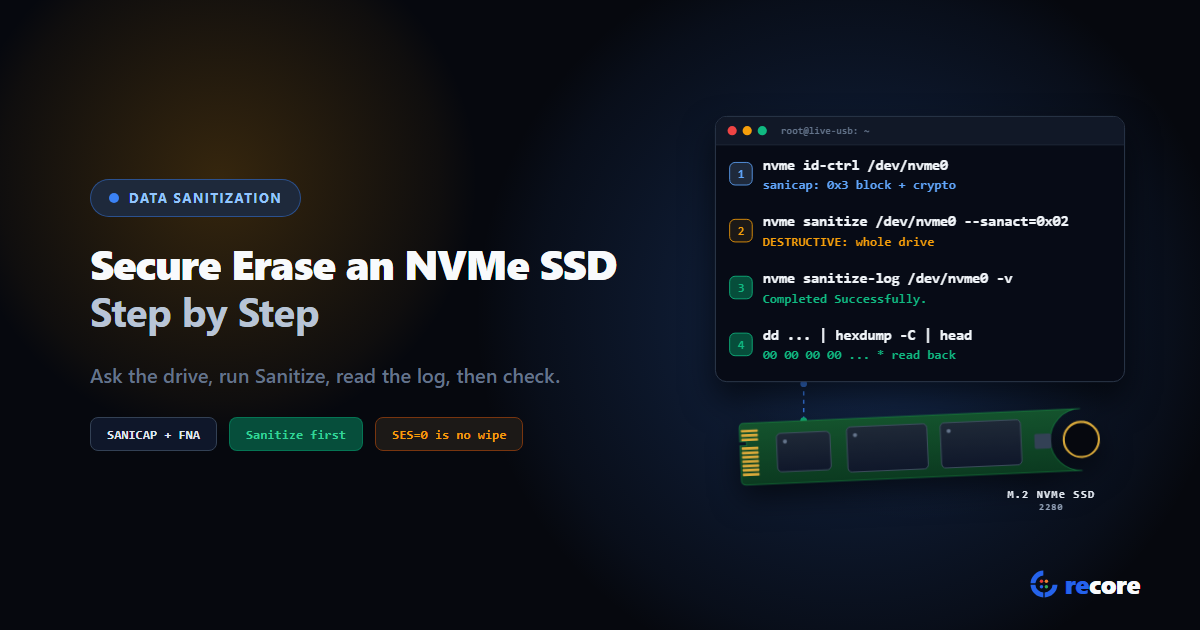
The nvme-cli commands in order: check what the drive supports, run Sanitize or Format, watch it finish, check the result, and keep a record for each drive.
Stay Ahead in Data Sanitization & ITAD Compliance
Join enterprise IT managers and electronics refurbishers receiving our monthly technical standards breakdowns, NIST/R2v3 audit tips, and benchmark releases.