How to Securely Wipe an SSD (and Prove You Did)
Formatting doesn't wipe an SSD. Which erase command fits SATA, NVMe and self-encrypting drives, how to check it worked, and what record to keep.
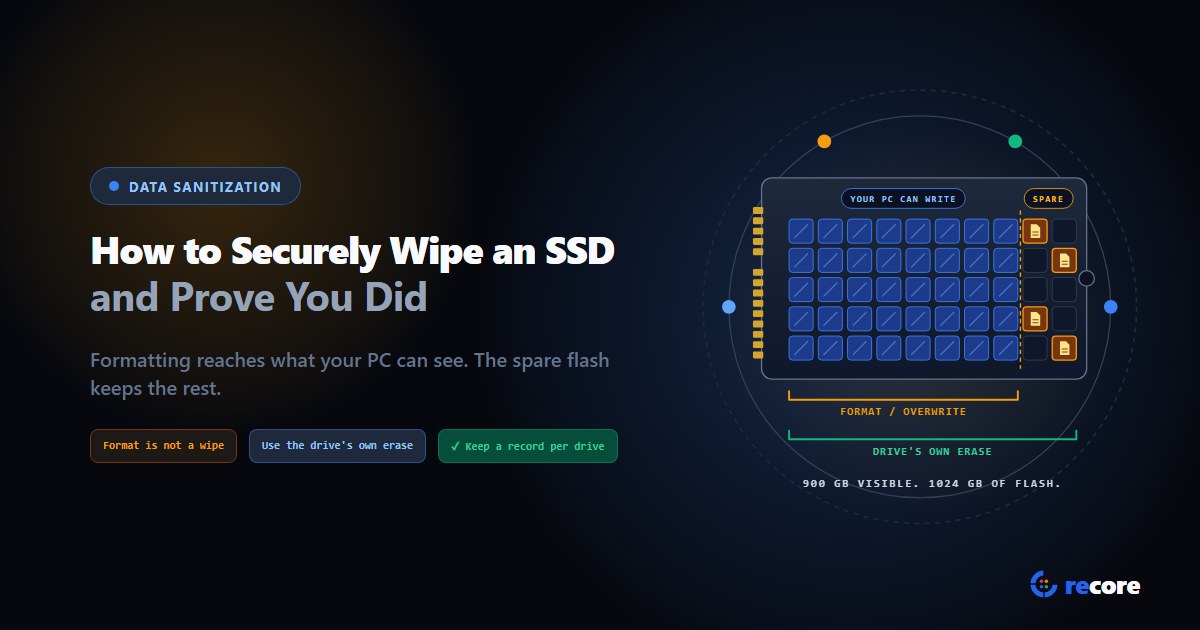
How to securely wipe an SSD, short version: use the erase command built into the drive, not a format and not an overwrite tool. On an NVMe SSD that's Sanitize, or Format with a secure erase setting. On a SATA SSD it's ATA Sanitize where the drive supports it, otherwise ATA Secure Erase. On a self-encrypting drive it's a cryptographic erase. Then check the result in a way that fits the command, and keep a record for each drive.
Why not just format it? Because an SSD holds more flash than your computer can see. A format, or any tool that writes over the drive, only reaches the part the computer can see. The drive's own command runs inside the drive, so it can reach the rest.
NIST SP 800-88 Rev. 2 (September 2025), the UC San Diego study Reliably Erasing Data From Flash-Based Solid State Drives (Wei et al., FAST '11), Microsoft's documentation for the Windows format command, and the manual pages for hdparm and nvme-cli. The step-by-step advice is ours.
1. Does formatting an SSD erase data?
No. There are two kinds of format, and neither one wipes an SSD.
A quick format deletes the index, not the data. Microsoft's documentation says format /Q "deletes the file table and the root directory of a previously formatted volume." The files are still on the drive. Only the list of where they are has gone.
A full format writes zeros, but only where the computer can reach. format /P will "zero every sector on the volume." That's an overwrite through the computer's normal interface. It covers one volume, not the whole drive, and it can't reach space the drive keeps to itself.
That hidden space is the problem. An SSD keeps spare flash for wear and speed, called over-provisioning. NIST's example: a drive "can have 1024 GB of total physical capacity but only 900 GB of available capacity." It goes on: "user data may be stored on the full 1024 GB because of the mechanisms in the ISM, and the entire contents should be sanitized" (Rev. 2, Section 2.3). ISM is NIST's term for any storage device.
Here's why old data ends up there. Flash can't be rewritten in place. So, as the UC San Diego paper below puts it, "to modify a sector, the FTL will write the new contents for the sector to another location and update the map." (The FTL, or flash translation layer, is the drive's internal map.) "As a result, the old version of the data remains in digital form in the flash memory." When the researchers took one drive apart, it held "up to 16 stale copies of some of the files."
NIST lists exactly this as a wipe that ran but didn't work: "an ISM that employs overprovisioning is sanitized using clear sanitization technique based on simple writes to overwrite existing contents and potentially leaves a substantial amount of user data unchanged" (Section 4.5.2).
The lab results agree. In 2011, researchers at UC San Diego (Wei et al.) pulled raw data straight off SSD flash chips after each wipe. They found that "overwriting the entire visible address space of an SSD twice is usually, but not always, sufficient to sanitize the drive." On one drive, "about 1% (1 GB) of the data remained" after twenty passes. Every tool they tried for wiping single files failed on SSDs. The drives they tested are old now. The design that caused it, spare blocks the computer can't address, is still how SSDs work, which is why NIST still warns about it.
2. The right method for each kind of SSD
First find out what you've got. The command depends on how the drive talks to your computer, not on the brand.
| Your SSD | Use this | Linux tool | Check it by | More detail |
|---|---|---|---|---|
| NVMe (usually an M.2 stick) | Sanitize (Block Erase or Crypto Erase), or Format with a secure erase setting (--ses=1 or --ses=2) | nvme-cli | Sanitize log, then read back or marker check | NVMe Format vs Sanitize |
| SATA (2.5-inch, or M.2 SATA) | ATA Sanitize (block erase or crypto scramble) if supported, otherwise ATA Secure Erase | hdparm for Secure Erase | Read back the erased drive | ATA Secure Erase explained |
| Self-encrypting (TCG Opal) | Cryptographic erase: the drive replaces its encryption key | the drive's own tools, or sedutil | Marker data written before, unreadable after | Section 5 below |
| Any SSD, no erase command works | Overwrite the whole drive with a random pattern | your wipe tool | Read back the pattern | Record it as Clear, not Purge |
NIST Rev. 2 doesn't list commands per drive type any more. It says the stronger method, Purge, should be used "when possible," and that purge techniques use "dedicated, standardized device sanitize commands." For the specific techniques it points to the IEEE 2883 standard. Overwriting through the normal interface is Clear: protection against "simple, non-invasive data recovery techniques using the same interface that is available to the user" (Section 3.1.1). Our NIST SP 800-88 page explains Clear, Purge and Destroy in more depth.
A note on external SSDs. These commands go to the drive itself. If the SSD sits in a USB enclosure, the enclosure has to pass them through. If yours doesn't, take the drive out and connect it directly. We'd do that anyway, so you know exactly which drive you're talking to.
3. Step by step
This is the outline we'd give a new tech on day one. The linked posts have the full detail for each drive type.
1. Copy off anything you want to keep. Every command below destroys everything on the drive. There's no undo, and we mean that.
2. Identify the drive. Work out which device name is the drive you mean to wipe. On a machine with two drives, the wrong one is one typo away.
3. Ask the drive what it supports.
- NVMe:
sudo nvme id-ctrl /dev/nvme0lists which Format and Sanitize options the controller supports. - SATA:
sudo hdparm -I /dev/sdXshows a Security section, including whether the drive is "frozen."
4. Unfreeze a SATA drive if you have to. Some computers lock the drive's security commands at boot. In hdparm's own words, a frozen drive "does not accept any security commands until next power-on reset." So the freeze only clears when the drive itself loses power and comes back. The ATA Secure Erase post covers how to get past that.
5. Run the drive's own erase. For example:
# NVMe: Sanitize with Block Erase (action 2), then watch it finish
sudo nvme sanitize /dev/nvme0 --sanact=2
sudo nvme sanitize-log /dev/nvme0

# NVMe: Format with User Data Erase (1) or Cryptographic Erase (2)
sudo nvme format /dev/nvme0n1 --ses=1

# SATA: set a temporary password, then erase with it
sudo hdparm --user-master u --security-set-pass NULL /dev/sdX
sudo hdparm --user-master u --security-erase NULL /dev/sdX
NULL is hdparm's keyword for an empty password. The hdparm manual marks these options "DANGEROUS," and it means it.
One NVMe catch: a Sanitize keeps running inside the drive, and the prompt coming back doesn't mean it's done. nvme-cli's documentation lists a --wait option, "Wait for the sanitize to finish." If your version doesn't have it, keep reading the sanitize log until it reports the erase finished.
6. Verify it. See the next section.
7. Write it down. See section 6.
4. How to check the wipe worked
Don't trust the success message on its own. The UC San Diego team tested twelve SSDs. Eight said they supported ATA Secure Erase, and of the seven they could check, "only four executed the 'ERASE UNIT' command reliably." One was worse: "it reported that sanitization was successful, but all the data remained intact. In fact, the filesystem was still mountable." Their conclusion: "each implementation of the security commands must be individually tested before it can be trusted."
Those are 2011 drives, and one study can't tell you how today's drives behave. We still take the lesson seriously. A drive saying "done" is a claim, not evidence.
Match the check to the method:
| Method | What to check | Common mistake |
|---|---|---|
| Overwrite | Read back and find the pattern you wrote | Reading a few sectors and calling it verified |
Block erase (Sanitize, Format --ses=1, ATA Secure Erase) | Read back and find the drive's erased value | Assuming zeros. Some drives return all ones (0xFF) after an erase |
| Cryptographic erase | Write marker data before the erase, confirm it's unreadable after | Reading back after a crypto erase. The drive can return anything, so a read-back proves nothing |
How much to read back is a policy choice. NIST Rev. 2 says that "unless explicitly required by organizational policy, elaborate sampling of an ISM's contents (e.g., full or representative) after clear or purge sanitization techniques is not necessary" (Section 4.5.1). It asks you to check that the tool completed and to look for errors. Many contracts and certifications ask for more. We compared the 5%, 10% and 100% figures, and where each comes from, in how much of a drive to read back.
5. Self-encrypting SSDs
A self-encrypting drive encrypts everything it stores with a key it keeps inside. A cryptographic erase replaces that key. The old data is still in the flash, but nothing can decrypt it any more.
It's got one condition you can't check from the outside. NIST Rev. 2, citing ISO/IEC 27040: "As a pre-condition for using CE, ISO/IEC 27040 specifies that no sensitive data has previously been stored on the ISM in plaintext form (i.e., not encrypted) as CE can only sanitize keys related to encrypted data" (Section 3.2.2). If encryption was ever off, or covered only part of the drive, a key change doesn't reach the data that was never encrypted.
The UC San Diego paper raises a second worry: crypto erase "relies on the controller to properly sanitize the internal storage location that holds the encryption key." The authors add that there's no way to confirm the key really was erased, not even by taking the drive apart. So treat the before-and-after marker check as the minimum. For the cryptographic details NIST asks a crypto-erase record to carry (Section 3.2.5: the encryption algorithm and key strength, how keys are generated, which areas are encrypted), you need the drive maker's documentation.
6. What record to keep
If you're selling one drive, a note of the serial number, the command and the result is enough to answer "did you wipe it?" later.
If you wipe drives for other people, NIST says "a certificate of sanitization (see Appendix C) should be completed for each ISM that has been sanitized" (Section 4.6). The sample form in Appendix C asks for:
- The drive: maker, model, serial number, media type.
- The method: Clear, Purge or Destroy, plus the technique.
- The tool: "Tools Used (include version)."
- The result: verification status and validation.
- Where it went: internal reuse, external reuse, recycling or other.
- Who did it: name, signature, date.
Write down the command that actually ran, not the one you'd planned. If Secure Erase failed and you overwrote the drive instead, the record says overwrite and Clear.
7. Where reCore fits
reCore does the steps above for every drive in a machine. It runs on the machine being processed, so no one types device names or commands.
- The drive decides the method. The station reads what each drive reports it supports and picks a hardware erase in a fixed order: NVMe Format with Crypto Erase, then Format with User Data Erase, then Sanitize, then ATA Secure Erase, then SAS Sanitize.
- Refusals move down the list. If a drive refuses a command, reCore tries the next one. A self-encrypting (Opal) NVMe drive that refuses all the standard commands gets an Opal cryptographic erase, but only when detection says it's an Opal drive.
- Fallbacks are labelled. If no hardware erase works, an SSD is overwritten with a random pattern, not zeros, and the method is recorded as Clear. A workflow that requires Purge gets no fallback: the wipe fails instead.
- Verification fits the method. Overwrites are read back against the pattern written. Block erases are read back against the value the drive actually returns, which reCore measures first rather than assuming zeros. Crypto erases are checked with markers written before the erase and confirmed unreadable after. Read-back covers at least 10% of the drive by default, and 100% when the workflow asks for it.
- One record per drive. Each drive gets its own wipe record naming the method that actually ran, and the certificate is issued from that record.
Two NVMe fixes are in the next station update. Earlier station versions could treat a Sanitize as finished before the drive had finished it. And a drive that carries out a User Data Erase or Block Erase with an internal key reads back as noise, so on current versions it fails verification; after the update, the markers written before the erase decide.
Limits worth knowing: NVMe and Opal erases run from reCore's Linux boot environment, not its Windows one. SAS Sanitize hasn't been tested on real hardware yet. reCore doesn't record a drive's encryption details, so the cryptographic evidence for a crypto erase has to come from the drive maker. More on the data wipe page.
Conclusion
Formatting an SSD clears the map, not the data. Overwriting reaches what your computer can see, and your SSD keeps more than that. Use the drive's own erase command, wait until it really finishes, check the result in a way that fits the command, and write down what actually ran. If the drive can't do a hardware erase, an overwrite is still worth doing. Just call it Clear on the record.
Sources
- NIST, SP 800-88 Rev. 2, Guidelines for Media Sanitization, September 2025. Sections 2.3, 3.1.1, 3.1.2, 3.2.2, 3.2.5, 4.5.1, 4.5.2, 4.6 and Appendix C.
- M. Wei, L. M. Grupp, F. E. Spada and S. Swanson, Reliably Erasing Data From Flash-Based Solid State Drives, 9th USENIX Conference on File and Storage Technologies (FAST '11), 2011. Sections 3.2.1, 3.2.2, 3.2.4 and 3.3, Table 2.
- Microsoft, format command reference, parameters /Q and /P.
- hdparm(8) manual page: --security-erase, --security-set-pass, --security-freeze.
- nvme-cli documentation: nvme-sanitize and nvme-format.
Frequently asked questions
Does formatting an SSD erase the data?
No. A quick format in Windows deletes the file table and the root directory, and leaves the data where it was. A full format (format /P) writes zeros over the volume, but only over the part of the drive the computer can address. An SSD also keeps spare flash the computer can't see. NIST SP 800-88 Rev. 2 gives the example of a drive with 1024 GB of flash and 900 GB visible, and says the entire contents should be sanitized.
What is the best way to wipe an SSD before selling it?
Use the erase command built into the drive: Sanitize or Format with a secure erase setting on an NVMe SSD, ATA Sanitize on a SATA SSD that supports it (ATA Secure Erase if it doesn't), or a cryptographic erase on a self-encrypting drive. These run inside the drive, so they can reach blocks the computer can't address. Then check the result and keep a record of the drive's serial number, the command used and the outcome.
Is overwriting an SSD with zeros enough?
Not on its own. A 2011 study from UC San Diego (Wei et al., FAST '11) found that overwriting the whole visible drive twice was usually, but not always, enough: on one drive about 1% of the data was still there after twenty passes. NIST SP 800-88 Rev. 2 also warns that an overwrite on a drive with over-provisioning can leave a substantial amount of user data unchanged. Use the drive's own erase command first and keep overwriting as a labelled fallback (NIST Clear).
How do I know my SSD wipe actually worked?
Check it in a way that fits the method. After a block erase or overwrite, read the drive back and compare it with the value the drive should now return. After a cryptographic erase, reading back proves nothing, so write known data before the erase and confirm it's unreadable afterwards. The same researchers found a drive that reported a successful erase while all its data was still there, so the command's success message alone isn't proof.
How do you wipe a self-encrypting SSD?
With a cryptographic erase: the drive replaces the key its data was encrypted with, so the old data can no longer be decrypted. NIST SP 800-88 Rev. 2 sets a precondition: no sensitive data may have been stored on the drive unencrypted. Since reading the drive back can't prove a key change, check it by writing marker data before the erase and confirming it's gone after.
reCore Research Lab
OfficialCompliance & Security Group
Technical research group specializing in NIST SP 800-88, IEEE 2883, SERI R2v3 standards, and forensic data recovery testing.
Wipe every drive. Prove every wipe.
reCore picks the purge method for each drive, verifies the result, and issues a per-drive certificate that a second person approves.
Related Guides & Research
Continue exploring compliance standards, firmware sanitization, and hardware diagnostics.
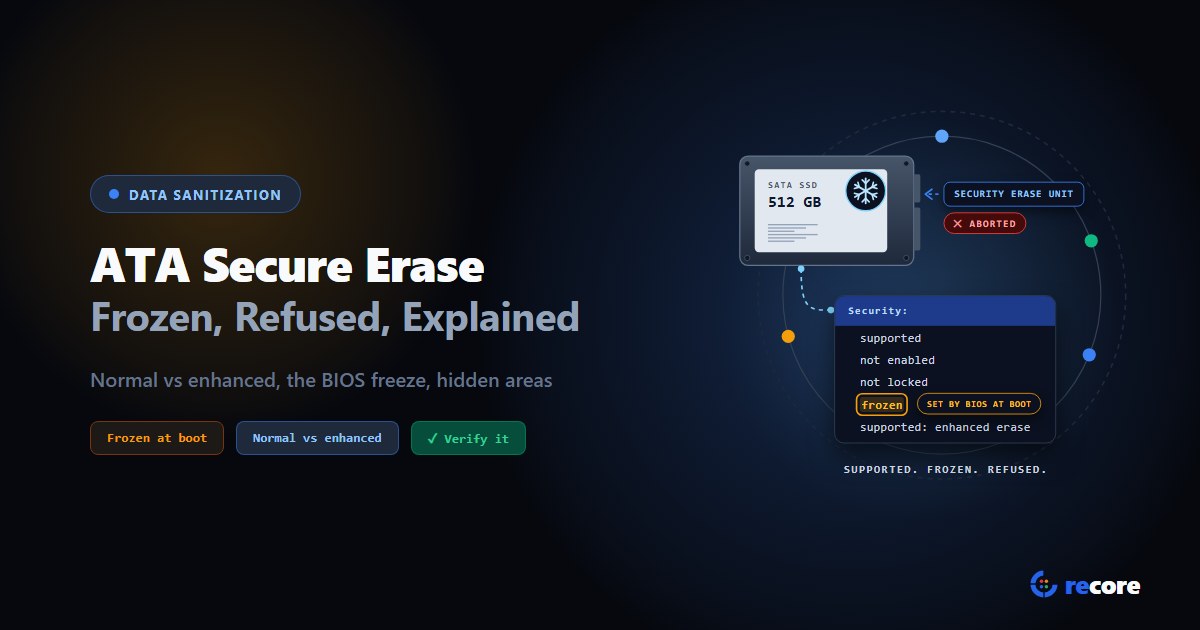
ATA Secure Erase Explained: Normal, Enhanced and Frozen Drives
What ATA Secure Erase does in normal and enhanced mode, why drives show frozen or not supported, what it misses (HPA, DCO), and how to verify it.
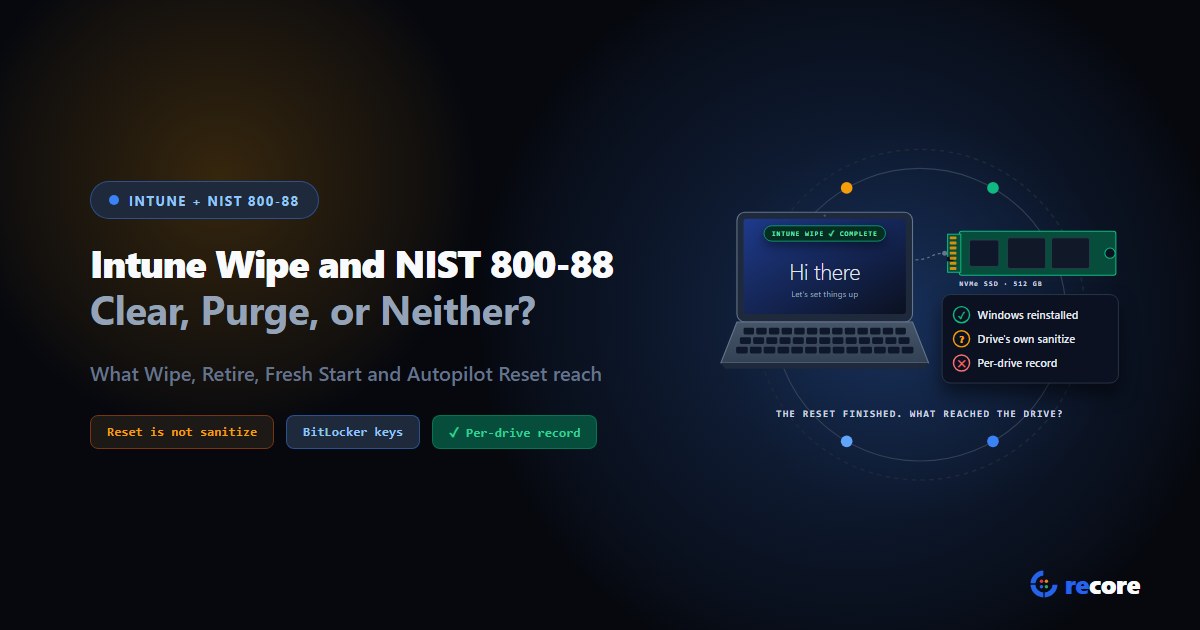
Does an Intune Wipe Count as NIST 800-88 Purge?
What Intune Wipe, Retire, Fresh Start and Autopilot Reset actually do, how each maps to NIST 800-88 Clear and Purge, and what an auditor gets.
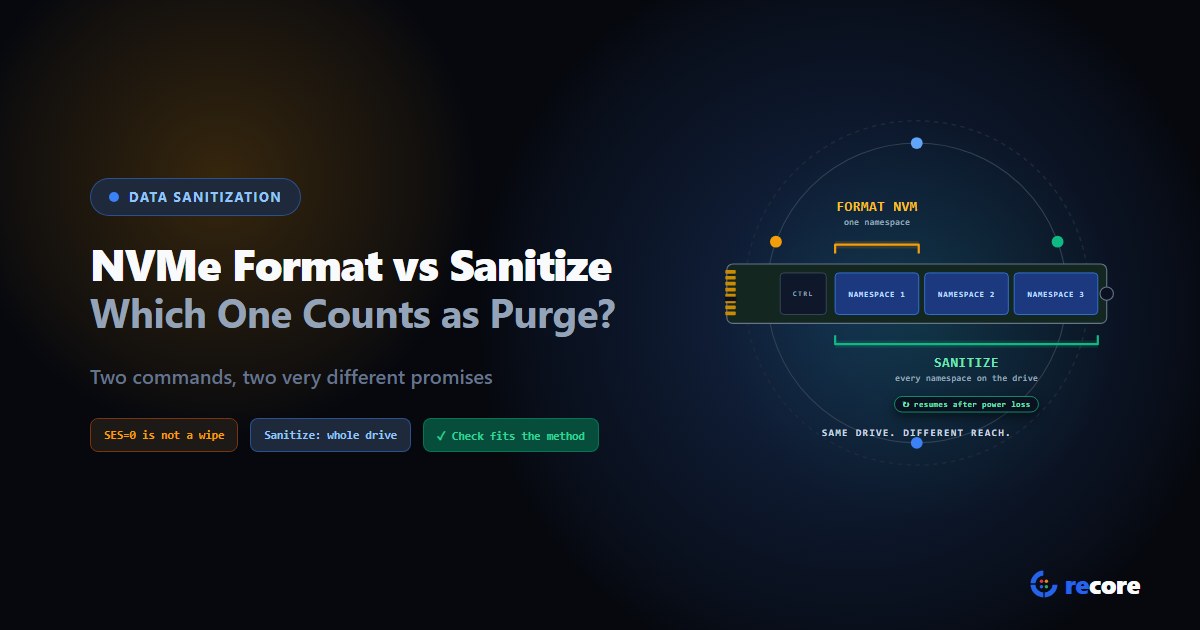
NVMe Format vs Sanitize: Which One Counts as Purge?
Format NVM with SES=1 or 2, or the Sanitize command? What each one erases, which counts as NIST Purge, and how to verify it, from the NVMe spec itself.
Stay Ahead in Data Sanitization & ITAD Compliance
Join enterprise IT managers and electronics refurbishers receiving our monthly technical standards breakdowns, NIST/R2v3 audit tips, and benchmark releases.