Burn-In Test for Laptops: How to Stress Test Used Laptops in Bulk
How to burn-in test a used laptop: what a quick boot check misses, how long to run it, what should fail or only warn, and what to log for the buyer.
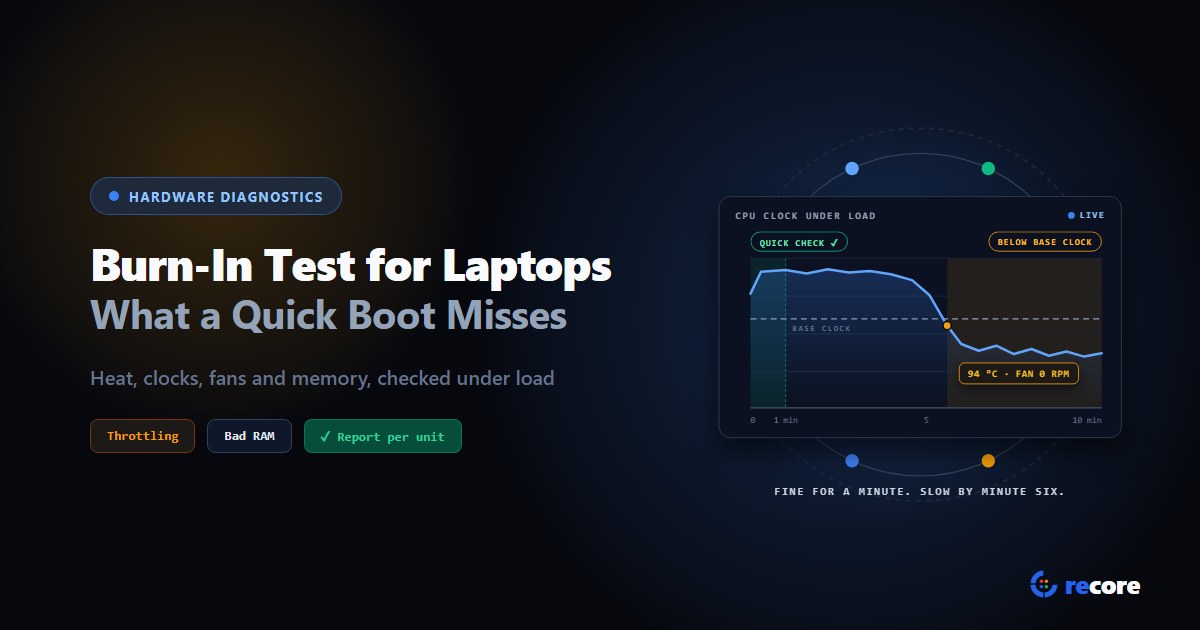
A laptop that boots, shows the right specs and passes a two-minute check can still be the one that comes back. The fan has seized, the thermal paste has dried out, and the CPU only struggles once it has been working for a while. A quick check never runs long enough to see it.
A burn-in test is how you find those units before a buyer does. To stress test a laptop properly, you load each part hard for a set time, check every result it gives back, and watch temperature, clock speed and fans while it works. This guide covers what that catches, how long to run it, what should fail a unit or only warn, and what to write down for the buyer. It's written for refurbishers testing used laptops in bulk, not for tuning one gaming machine.
- A quick boot check proves the parts are there. A burn-in proves they still work once they're hot and busy.
- Check answers, not just survival. A CPU or memory test should know the right result in advance and catch any wrong one.
- Judge cooling by the clock, not the temperature alone. A hot CPU that holds its base clock is fine. One that sinks below it under full load is not.
- No standard sets a burn-in time for used laptops. Make it long enough for every check you rely on to have time to fire.
- Keep a report per unit: the verdict, how long each part ran, peak temperature, lowest clock, peak fan speed and any errors.
What is a burn-in test?
A burn-in test runs hardware under heavy, sustained load and checks that it keeps giving correct results. The term comes from electronics manufacturing. An FDA inspection guide says: "In effect, burn-in is an accelerated aging process," and the military test method it cites says burn-in "is performed for the purpose of eliminating marginal devices" (FDA, Screening Electronic Components).
That's aimed at new parts. NIST's handbook describes the failure rate of most products as a bathtub curve. It starts with an early failure period, "characterized by a high but rapidly decreasing failure rate," and ends with a wear-out period, where "degradation failures occur at an ever increasing rate" (NIST/SEMATECH e-Handbook, The bathtub curve).
A used laptop sits at the far end of that curve. It's had years of heat, dust and travel. So on a refurb floor, a burn-in isn't about weeding out weak new parts. It's about finding wear that a machine sitting at idle can hide.
One line from the same FDA guide carries over exactly: "The burn-in method of screening out defective devices is only as effective as the testing conducted following burn-in." Heat alone proves nothing. The checks you run while the machine is hot are what find the fault.
What a quick boot check misses
At idle, a laptop barely uses its CPU, touches a sliver of its memory and makes little heat. Most faults that come from wear only show once that changes.
| Fault | At boot or idle | Under sustained load | What shows it |
|---|---|---|---|
| Dried thermal paste or a clogged heatsink | Normal temperatures | Heat builds and the CPU slows itself to cope | Clock falls below its rated base clock under full load |
| Fan that has seized or stopped | Silent, which looks normal | CPU gets hot with no airflow | Fan speed stays near zero while the CPU is hot |
| Unstable CPU | Boots and runs light tasks | Wrong results, or a worker crashes | A known calculation comes back with the wrong answer |
| Failing memory | Usually fine, most memory is unused | Data read back differs from data written | A pattern written to memory doesn't match when read back |
| Weak or failing drive | Drive health can still look fine | Read-back errors, I/O errors, speed collapsing | Written data doesn't match on read, or throughput drops |
| Hardware faults the system logs | Nothing on screen | The machine records corrected or uncorrected hardware errors | New entries in the hardware error log during the run |
Temperature on its own misleads. Intel's guidance says "Being at maximum temperature while running a workload isn't necessarily cause for concern," and adds that "it is difficult to tell purely from temperature alone if your system is having problems." What it does say is that when the chip gets too hot, "the processor typically reduces frequency and power to prevent overheating" (Intel, Information about Temperature for Intel Processors).
So ask whether the CPU kept its speed while it was hot, not just how hot it got. A laptop that runs hot at full clock is doing its job. One that drops well below its base clock for long stretches has a cooling problem a buyer will notice.
How to stress test a laptop, part by part
Whatever tool you use, the same four parts matter. Close everything else on the machine first.
- CPU. Put a worker on every thread. Give them work whose correct result is known in advance, so a wrong answer counts as a failure, not just a crash. While it runs, log the clock speed, the temperature and the fan speed once a second.
- Memory. Write a known pattern across as much free memory as is safe, read it back, flip every bit, and read again. Any byte that doesn't match is bad memory. Leave headroom for the system so the test doesn't crash the machine it's testing.
- Drive. Write a temporary file, read it back and compare. Make sure the read comes from the drive, not from a copy the system kept in memory, or a bad drive can still "pass". Never write to the raw disk of a unit you haven't wiped yet; a temporary file is enough to load the drive.
- Hardware error log. Read the machine's hardware error counters before and after. New errors during the run are a finding even if every test passed.
Then compare the clock readings with the CPU's rated base clock from its spec page. That one comparison tells you more about cooling than any temperature number.
How long should a burn-in test run?
There's no standard time for burn-in testing used laptops. The best-known figure belongs to components, not laptops: the FDA guide says "burn-in temperature is normally 125 C with an initial burn-in time of 168 hours." That's for chips held in an oven, a week at a time. Nobody runs a refurb floor that way, and anyone who quotes one number for every laptop is guessing. What you can do is make the run long enough for the checks you rely on to have time to work:
- Heat has to build. A cooling fault only shows once the CPU is hot. If the run ends before the CPU warms up, a dead fan looks exactly like a quiet one.
- Throttling has to last. A short dip in clock speed is normal. A useful check waits for a sustained stretch before calling it a problem.
- Memory has to be read back. Writing a pattern proves nothing until it's been read and compared. A run that ends mid-write hasn't tested anything.
- Drive slowdowns need a baseline. To spot a drive whose speed collapses as it heats, you first need a few minutes of normal speed to compare against.
Here's how reCore sets its times, as one worked example:
| Setting | Total time | Parts | How the time splits |
|---|---|---|---|
| Standard workflow (default) | 10 minutes | CPU, memory | About 4.4 min CPU, 5.6 min memory |
| Diagnostics and burn-in preset | 45 minutes | CPU, memory, drives | About 13.6 min CPU, 17.8 min memory, 13.6 min drives |
| Floor for any part | 1 minute | Any | A total too short to give each part a minute is refused |
The total is split by weight: CPU 30%, memory 40%, drives 30%, shared across drives. Memory gets the biggest share because how much of it can be checked depends on time. If the drives aren't tested, the weights are shared out between CPU and memory.
The checks themselves explain why longer runs find more. reCore warns about throttling only after ten readings in a row below base clock, about ten seconds. It checks for a stalled fan only once the CPU has reached 70 °C. It looks for a drive slowing down only after measuring its normal speed in minutes two to five of the drive's turn, so a drive given less than five minutes never gets that check.
What should fail a laptop and what should only warn
A burn-in that fails every unit with a warm CPU is as useless as one that passes everything. Split the findings in two: faults that make a unit unfit to sell, and signs worth a person's look.
| Finding | Verdict in reCore | Why |
|---|---|---|
| A CPU worker returns a wrong answer, or a worker dies | Fail | The CPU can't be trusted to compute correctly |
| Any memory byte reads back wrong | Fail | Bad memory corrupts data at random |
| Drive data reads back wrong, or an I/O error | Fail | The drive can't be trusted to store data |
| A part reaches its critical temperature and the test stops | Fail | Cooling can't keep the part safe under load |
| New uncorrected hardware errors during the run | Fail | The system itself recorded a real fault |
| CPU below its rated base clock for about ten seconds in a row under full load (well below its own peak, if the base clock is unknown) | Warning | Usually cooling: worth cleaning, repasting or a lower grade |
| Fan never passes 200 RPM in a run where the CPU reached 70 °C | Warning | A likely dead or stuck fan |
| New corrected hardware errors | Warning | Hardware that's coping now but degrading |
| Memory test ran out of time before reading anything back | Warning (inconclusive) | Not a pass: nothing was verified |
Before the critical point, each part eases off instead of failing. In reCore the CPU eases off at 95 °C (92 °C in the standard workflow) and stops at 105 °C. Drives ease off at 65 °C and stop at 75 °C, because a drive is unsafe long before a CPU is.
What to log as evidence for the buyer
"Burn-in passed" on a stock list is a claim. A short report per unit is evidence. If a buyer disputes a unit, you want to show what the machine did, not just what you concluded.
| Record | Why the buyer cares |
|---|---|
| Overall verdict, and each part's verdict | What passed, what failed, what warned |
| Time each part ran | A 30-second test and a 15-minute test aren't the same claim |
| Peak temperature per part | Shows the part was actually loaded and got hot |
| Peak and lowest CPU clock | Shows whether the CPU kept its speed under load |
| Peak fan speed | Shows the fan spun up, where the laptop exposes a fan reading |
| Drive read and write speed | A slow drive is a different product from a fast one |
| Error count, and what was seen during the run | When, how long and how bad any throttling or overheating was |
| Hardware errors during the run | Faults the system recorded that no screen showed |
Tie the report to the unit's serial, and let the burn-in result feed the grade. A unit that passed its cosmetic check but warned on cooling shouldn't leave as an A. Our laptop grading criteria template shows how failed tests cap a grade, and the stock list post shows how test records reach the buyer without retyping.
How reCore runs the burn-in
reCore's diagnostics include a burn-in that runs on the station after the hardware tests. In short:
- CPU: one worker per thread, all doing the same calculation. The station works out the right answer first and checks every worker against it.
- Memory: fills up to 80% of free memory with a pattern, reads it back, inverts it, reads again, then checks an address marker every 4 KB. It always leaves at least 512 MB for the system.
- Drives: writes a temporary file of at most 2 GB, or a tenth of free space, and reads it back from the drive rather than from memory where the system allows. When it can't, the result says so. The file is always deleted.
- Report: the dashboard shows each run's verdict, what was seen during it, and per part the peak and lowest clock, peak power, peak fan speed, read and write speed, and a temperature chart.
What it doesn't do, so you can plan around it:
- There is no graphics card stress test. reCore detects the GPU but does not load it.
- Parts run one after another, not all at once, so each part's readings are its own.
- Fan checks need a fan reading. Many laptops hide fan speed from the operating system. On those, the fan isn't checked and the report doesn't pretend it was.
- The time is set by the workflow. Every plan gets the standard 10-minute run. Changing the time, the parts or the limits needs the Configurable Workflows add-on; see pricing.
A burn-in won't find every fault. It finds the ones that hide at idle, and it leaves a record for each unit. That record is what makes "tested" mean something to a buyer.
Frequently asked questions
What is a burn-in test?
A burn-in test runs a machine under heavy, sustained load and checks that it keeps giving correct results. On a used laptop that means loading the CPU, the memory and the drive for a set time, checking every answer for errors, and watching temperature, clock speed and fans while it runs. It finds faults that only show up once the machine is hot and busy.
How long should you burn-in test a laptop?
No standard sets a time for used laptops. The run has to be long enough for the parts to get hot and settle, and for every check to have time to fire. reCore's standard workflow runs 10 minutes across the CPU and memory, its diagnostics and burn-in preset runs 45 minutes across CPU, memory and drives, and no part ever gets less than one minute.
How do I stress test a laptop CPU?
Load every thread with work whose correct answer you know in advance, so a wrong result is caught, not just a crash. While it runs, watch the clock speed against the CPU's rated base clock, and the temperature and fan speed. A clock that sinks below base clock under full load, or a fan that stays still while the CPU is hot, points to a cooling problem.
Is it bad if a laptop CPU hits 95 °C during a stress test?
Not on its own. Intel says being at maximum temperature while running a workload isn't necessarily cause for concern, and that it is hard to tell from temperature alone whether a system has a problem. Look at what the CPU does at that temperature: if it holds its clock, cooling is coping; if the clock falls below base clock for long stretches, it isn't.
Does a burn-in test the graphics card?
It depends on the tool. reCore's burn-in loads the CPU, memory and drives. It detects the graphics card but does not stress test it, so a GPU fault that only shows under load needs a separate test.
reCore Diagnostics Group
OfficialHardware Triage & Quality Assurance
Hardware engineers analyzing Apple Silicon, PC OEM firmware telemetry, battery degradation chemistry, and cosmetic defect standards.
Test every device the same way
Diagnostics, stress tests and battery health on every station, started for one machine or the whole floor from one dashboard.
Related Guides & Research
Continue exploring compliance standards, firmware sanitization, and hardware diagnostics.
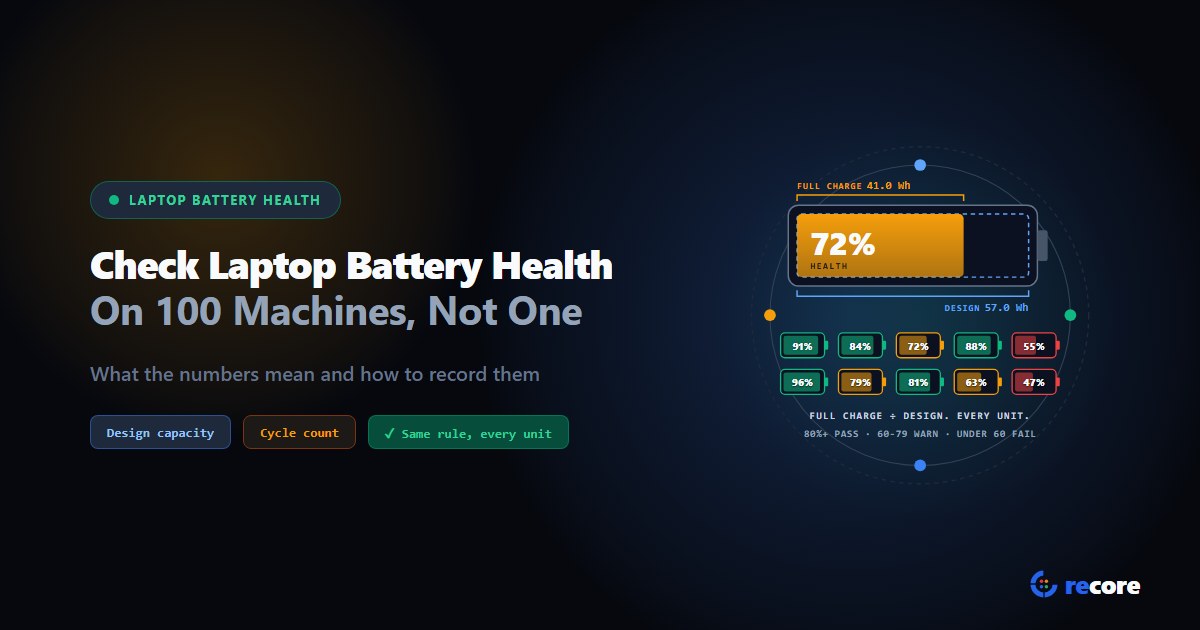
How to Check Laptop Battery Health on 100 Laptops, Not Just One
How to check laptop battery health on one machine and on a whole batch: what the numbers mean, when they mislead, and how to record them for a buyer.
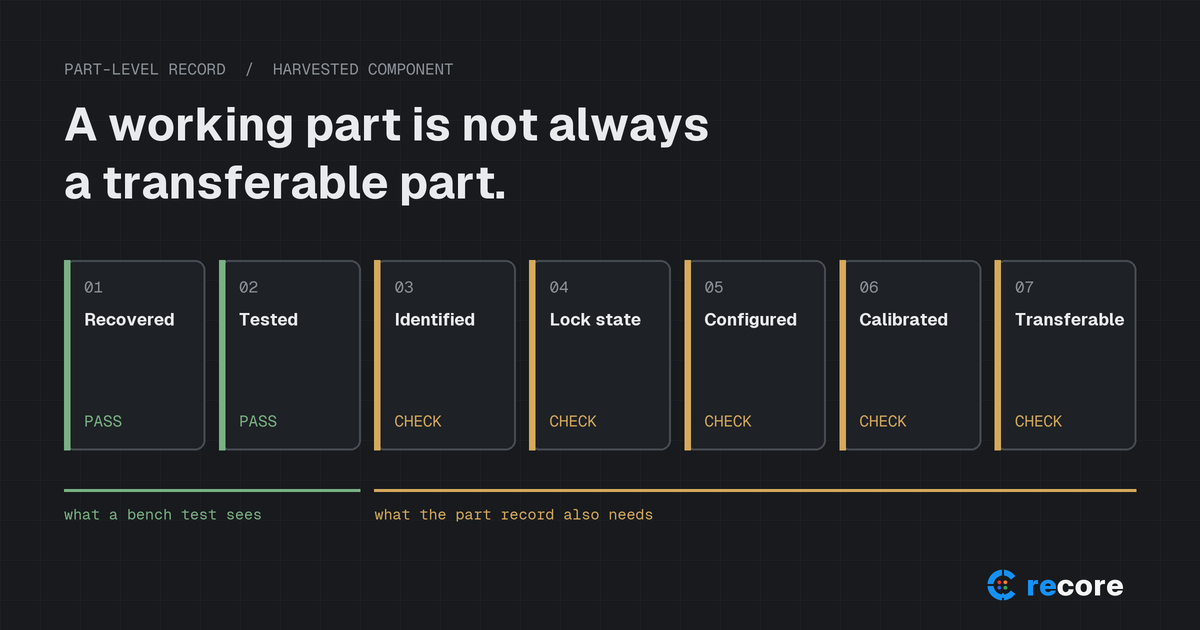
A Working Part Is Not Always a Transferable Part: Apple Parts Activation Lock and What ITAD Should Record
Apple's part-level Activation Lock and Repair Assistant change how refurbishers should test, grade and document used iPhone and iPad components.
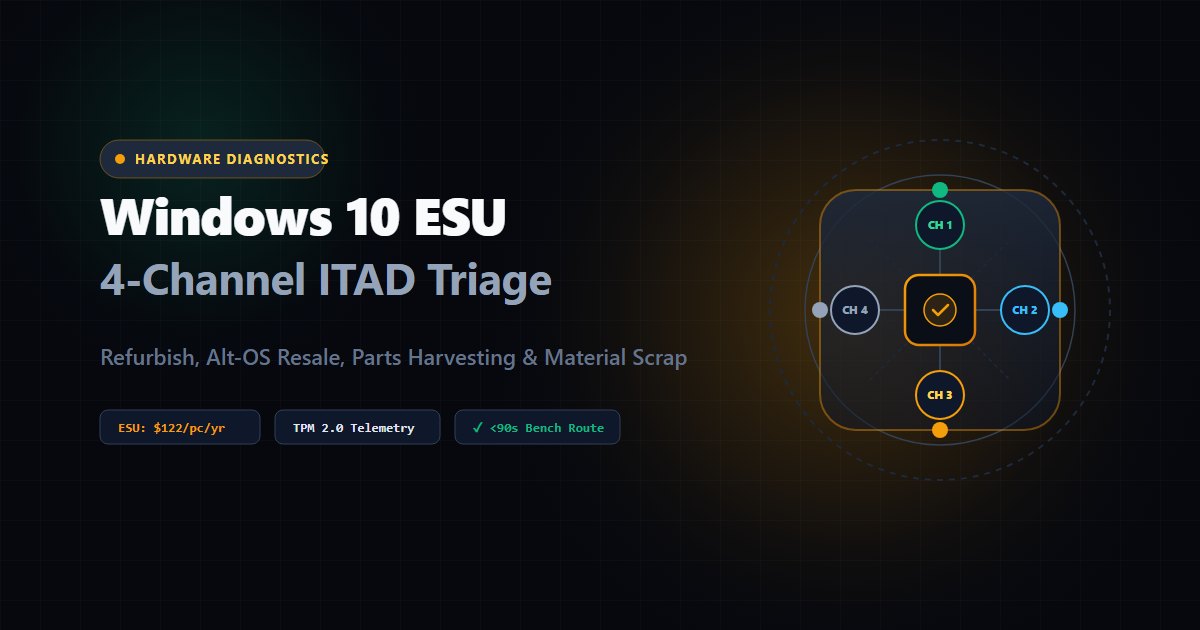
The Windows 10 ESU Escalation: A 4-Channel ITAD Triage Framework for Non-Windows 11 Hardware
Windows 10 ESU costs double in Year 2. How ITADs use automated hardware diagnostics to triage off-lease fleets into four sales channels.
Stay Ahead in Data Sanitization & ITAD Compliance
Join enterprise IT managers and electronics refurbishers receiving our monthly technical standards breakdowns, NIST/R2v3 audit tips, and benchmark releases.